Friday, 5 July 2013

Converting data into Workday - why it isn't easy some days

I wrote previously on the topic of converting from PeopleSoft to Workday.  Since then, we've gone through another conversion cycle, so I thought it would be an interesting example of why converting into Workday can take longer than you expect some days....

Like many companies, we track Emergency Contact data.  In our case, it's in a PeopleSoft system.  Nothing fancy, just whatever the new employee wrote onto the paper form, which then got entered into the system.

During fit gap, we looked at WD and yep, it has Emergency Contact data pages too, so we should be good to go.  During data mapping, we looked at both systems and defined rules of what needed to point to the various WD fields....here is where it gets interesting, when we attempted to convert the data...


What we learned during the conversion exercise


1. WD has built-in formatting on the address and phone numbers, PSoft does not.  In particular, PSoft does not offer standardization on phone numbers, and it wasn't a high priority item for the HR users to keep formatted.  So we have phone numbers that have the required number of digits, but not in a consistent format:  (555) 555-5555, 555.555.5555, and 555/555-5555, etc.  Around 80% of them follow one format though, so we can try and squeeze the data for those into one format to convert.

2. WD requires one piece of contact information for an Emergency Contact, in order to save it--either email or phone number.  We do not always have contact details, and in particular, we do not store email for emergency contacts.  Perhaps not the best from an HR perspective, as it defeats the purpose of an emergency contact, but we do have a name, and it saved just fine into PSoft.  WD demands a little more in this regard.  So above, we lost 20% of the population due to the various odd number formats, and now we lost another 10% due to lack of any contact details.

3. WD breaks apart the name fields for Emergency Contact, PSoft has in it one text field.  This is a big one for us from a conversion perspective, because similar to the inconsistent phone number formatting, we also have inconsistent name formats.  In some cases it was 'First Last' in others it's 'Last, First'.  Then, we have the additional complexity of Mexican names, where a 2nd last name is involved, which is an additional broken out field in WD.  Divining the mapping on this one was painful and I am not confident of the correctness of the data once mapped.

4. As PSoft has that one text box for names, our HR users also used it for other pieces of data, in particular where they did not have a dropdown value for Emergency Contact type.  So in PSoft rather than putting 'Joe Smith' and choosing the type of 'father' and 'Mary Smith' and 'mother', our HR users put 'Joe and Mary Smith (parents)' in the name box.  Trying to break this out in any automated fashion is impossible.

5. PSoft has a 'same address as employee' functionality on emergency contacts.  WD has something similar, a checkbox that allows you to take the emp's data.  Our consulting partner, however, cannot convert this checkbox using their proprietary conversion/load program.  They can however, load the address, etc. data.  They gave me a big explanation, due to technical web services that are called on the fly, bla bla.  The end result, however, is that we do not have this checkbox enabled in WD for our loaded data.  Manually entered data will be just fine.  As a result, we've had to write into the process documentation, that if an entry person is changing an address for an employee, they need to check the emergency contact page and click on the same address box (if address is the same), to trigger the 'linkage' and so that we do not need to upkeep two separate instances of the same address/phone numbers. 

Based on all of the above, my recommendation was to open up this area to self-service and push it out to the emps as a 'to do'.  As this data is collected upon hire and many of our emps have 10+ years of service, I am not sure of the viability of the data in any event, nevermind the above conversion issues that will result in incomplete data and additional entry steps.  Our business owner, however, is insistent that we convert whatever we can convert, as she has little confidence that the employees will enter the system and update their emergency contact details.

In Summary


Workday offers Emergency Contact pages, and the functionality is suitable for the purpose.  Like all other pieces of data in your new WD system, you need to be aware of the future WD edits as well as the condition of your data, otherwise it can end up taking a lot more time than you originally expected.

Thursday, 4 July 2013

Historical data and Workday HCM

Many of us who have spent years in HR systems—be it SAP, PeopleSoft, Lawson, Oracle, or some other HR ERP or HRIS—have gone through conversions and upgrades.  Many of us have gone through major releases or one ERP to another.  However—Workday is a different HRIS entirely. 

Should we convert historical data?  If so, how much should we convert from our legacy system to Workday?

Workday history functionality

Workday provides some pre-delivered functionality that allows you to track job and compensation history from a previous system.  It looks like this if you're viewing it online:


As you can see, it's not so detailed. 


Advantages of using WD Previous System pages:

  • It is pre-delivered functionality from WD, so you only need to put the data into the system to use it.  You can enter the data manually online or via EIB.
  • It's also available for reporting too.
  • It saves you the hassle of keeping an archive HRIS or secondary system for reporting purposes.
 

Disadvantages of using WD Previous System pages:

  • You are limited to the fields WD provides. You cannot choose to bring in other history fields.
  • If you're trying to run a report of BOTH current and history data, it can be a little ugly as the structures are slightly different. 
 

What about 'recreating' our history in WD?

Some companies choose to replicate their historical data (or a subset of the data, or perhaps for certain employees) in Workday.  Then, they recreate all the transactions.
  • It's cleaner from an end user perspective, when viewing the data. 
  • ALL of your data elements can be used, so reporting is less manual as you can directly drive the reporting from WD
  • It requires effort to set up all the supporting data though (supervisory orgs, locations, job profiles, security, reporting relationships, etc.)

Other perspectives

Fortunately, many companies have already gone through such analysis efforts, so it’s good to research online what others have done, to learn the pitfalls and advantages in advance.  Interesting reading:
  • University of Southern California’s decisions on history in WD
  • Cornell’s analysis of moving history from PeopleSoft to Workday 
  • Some guidance from Towers Watson – check out the pdf


Our decision

We have 20+ years of history in our PeopleSoft system.  We're implementing WD as part of an HR Transformation though, so much of the data structures will be changing.  With that in mind, we'd prefer not to bring over any of our legacy data.  We'll be converting people with two rows:
  • A hire row, with defaulted data
  • A current row, with current data
We will not utilize the WD Prior history functionality detailed above.
 

Sunday, 30 June 2013

Workday HCM - is it really that easy? Is everything really configurable?

I recently received a nice email via this blog (thanks for the emails and questions, keep them coming, it keeps me thinking), and it included the following question:

I have watched few demos and have gone through many articles and I am speechless when I see some of the them . However I dont know what is really happening in the backend and if everything is really simple and easy as they show in the demo?

Today I was thinking about this part:  is everything is really simple and easy as they show in the demo?

During our sales cycle, we had lots of questions while we watched the demos, and the answer to everything was basically, 'Yes!  You can do that via configuration!  It's flexible!'  As were finding out though, it's not completely 100% the case.  For example...

Configuring Org Chart functionality in Workday


Workday HCM offers some interesting 'organization chart' capabilities.  If you want more details of org chart functionality, here is a free job aid on that topic that I found while searching online.  Job aids posted by other companies can be quite useful, as mentioned.  :)  Here are a few screenshots from that document to illustrate...

When you're in WD, you can click on the blue 'org chart' button from a Worker:


Then, it brings you to the Org Chart page in WD.  From here you can navigate up/down and around the Org Chart:


It's nice looking functionality, especially if you don't have anything.  Of course like every other HRMS, it's not as great as the niche player software applications, such as OrgPlus.

How does it look from the backend/setup perspective?  It's quite simple to configure, actually.  There are multiple 'views' of the org chart, or various org chart options.  So you can have an 'Employee' org chart (as above).  Or you can have a 'location' org chart or a 'supervisory' or chart or a 'pay group' org chart.  Then, you can provide different data elements on these various views.

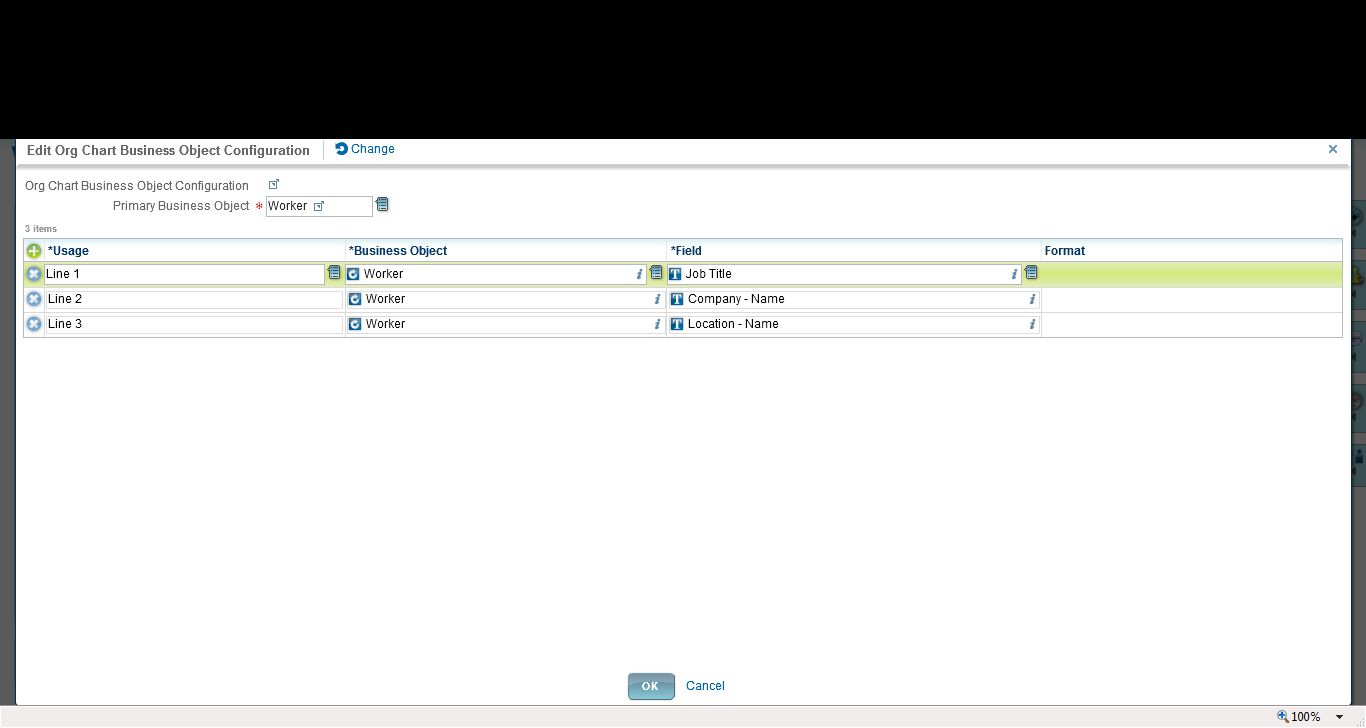
Each is quite simple to set up, just point and click to select the org chart fields to display, as well as whether or not to display the emp photo:


Looks great, easy to use.  However...
 

Configuration Limits on the Org Chart

 
1. You have a limited number of fields.  As above, you can see Lines 1-3.  Then you can add in the photo and the organization (such as in the Supervisory Org shown in the online functionality).  But otherwise--you cannot add more fields.  You cannot add a line 4 or 5, for example.  Our organization wanted to show more data, so then we started to consider workarounds, to make a calculated field to be able to squash more data into line 1, for example (which WD allows you to do).  However...
 
2. The org chart only allows you to choose/display 'public' fields or calculated fields based on those public fields.  Well sure, on one hand that makes sense.  If everyone is viewing the org chart, then it needs to be public fields.  However...in our case, we wanted to show BOTH job title and business title.  Business title is NOT a public field.  Therefore we cannot reference it in our org chart.  Sidenote:  someone on Community put in a Brainstorm for the exact same requirement, to allow them to show biz title in the org chart.  So far, it's not been picked up by WD for a future release.
 
3. The overall configuration is a little lacking.  For example, we often want some flexibility to not display people on long term disability leave.  Or in the specific case of Europe, where people have a termination reason of 'garden leave' (so they are released prior to their 'true' term date, often 3-12 months), while they are active Workers, they are no longer actively working for the company and therefore we shouldn't confuse people by showing this data.  There is no way to easily filter out 'active' workers in scenarios such as these from displaying in the org chart.
 

In Summary

 
Yes, Workday is configurable and flexible, however, I say this with a pinch of salt.  It may not be configurable to *exactly how your company wants it*.  And that, my friends, is the negative of a SaaS solution.  You must also be flexible in your business requirements to be able to use this functionality, and sometimes you must bend your requirements to meet how the software has been designed.
 

A tip

 
You just need to be aware of your business requirements.  It's like everything else when dealing with a SaaS solution (regardless of the vendor).  In this example, if you are evaluating WD, you need to be aware and document your requirements in advance.  If your requirement is just 'to have org charts' because you have little or no functionality currently, then no problem. 
 
If your requirement is to 'have org charts with 7 lines of data, and to be able to suppress certain data on certain levels of the org, along with hiding photos in Europe and on and on', then WD will not be able to meet your needs.  So it's important to know your requirements early on, such as in the sales cycle, rather than getting to the configuration stage and suddenly being disappointed that, 'I can't configure it the way I want'.
 
So 'is everything really configurable?'
Maybe--it depends on your requirements.  :) 


Friday, 28 June 2013

How to create a calculated field in Workday

I was having a discussion recently with someone, about the calculated field functionality in Workday.  I've previously posted about procedures and tips around using calc fields in an operational capacity, but I recently put together this quick example to explain the topic further, so thought I'd share it here too.

Once you're in Workday, the first thing to do is to define the type of calc field that you'd like to build:
There are many different options, more than I'm showing here, but the point is to know what you are seeking to do.  An average, untrained user would probably be stopped at this point.  Let's keep it simple and do a concantenation example.  It's also relevant to note--you need to know what business object should be invoked here.  We'll use the Worker object, since it's a main source for employee data.

On the next page, you're brought into a screen that functions in the same manner as the 'normal' reporting page.  So you can choose your fields, as well as add in the more intense logic if you're building something more complicated.  In my example, I just want to concatenate two fields together.  I'm using email+mobile just as a sample, so that I get a mix of letters and numbers:

Next after you save your new calculated field, you can use it in your reporting.  You need to choose the same Object (in our case Worker), to be able to find the field.  Then, your new calculated field will exist like any other field on Worker.

Then, you're ready to run your report.  Here's the example which I then ran into Excel:
 
 
A few points (and the reason I included a snippet of the output)...you'll see some workers have only a phone or some have only an email...so this is all you get.  So getting a good output on a calculated field will depend on what data you have to work with underneath it.  You can see where these can get tricky then as well, once you make more complex ones...is your bad output due to bad design of your calc field or bad data?
 
This was a quick and dirty two minute example.  WD offers a 3 day/15 hour training class on the topic, to get really in-depth with the logic of creating these special fields.  However, seeing how easy it is to create them, you start to get an idea of how dangerous they can become, if not regulated.  
 

Thursday, 27 June 2013

Workday job aids - learning and using Workday

In the Workday sales cycle, one of the things they often emphasize is how easy it is for the users:  HR, managers, etc.  Once you're in the implementation phase, however, you realize that you need some type of help documentation--the system is not standalone and usable without some background/training.  Workday does not mention on their 'main' webpage, but there is plenty of discussion about this topic on the Workday community--they're called 'job aids'.

Job aids are 1-2 page instructional documentation, to help a user to perform a task.  They are meant to provide just in time information to a user or manager who needs to perform a task.  According to examples presented on the Workday Community site, companies are handling these in various ways:  Word docs, pdfs, instruction on internal company portals, etc.

Examples of job aids would be:
  • Logging into Workday
  • Changing your Workday password
  • Create a position
  • Create a requisition
  • Separate an employee
  • Delegate a task
  • Hire an applicant
The interesting thing for me to see is how companies are approaching this topic.  Because WD changes three times a year, many people are trying to minimize the screenshots and just include the menu path.

For example, here is a piece of a sample from Community:


Notice this company is not using screenshots and minimizing the actual pictures/icons used.  Doing so makes upgrades easier, otherwise you'd be re-doing these docs three times per year potentially!

As a global organisation, our company is particularly interested in this topic of user training on Workday.  In particular, because we have very limited manager self-service capabilities in the current system.  We provide view only access currently.  In the post-Workday world, managers will be able to initiate transactions, such as pay increases, terminations, etc.

Where to find more info on this topic

IF you're a Workday customer, the Workday Community provides many job aids.  Search for 'job aid' in the search box and then select 'Shared solution' on the left under 'Filter by'.  There are at least 30 samples out there, probably 50+ if you search well.

IF you're not a Workday customer--there are still options and Google is your friend.  :)

Many customers post their materials and for whatever reason they are open to the world.  Type 'Workday job aids' into Google and you'll see what I mean.  Here are some examples of what I've found recently:

Cornell University transfer process
Activis goal setting
Tyco's hire documentation

Hope this has been helpful.  It seems that many companies are handling this training topic differently, so always great to hear what others are doing, so that we can all learn more and produce a better user experience.

Feel free to add any insight into the comments.  :)

Wednesday, 26 June 2013

Workday HCM security groups

I mentioned Workday security a while back.  Today, I'm thinking a lot about the concept of Workday 'security groups'.  In WD you assign users to groups.  The groups have various defined permissions.  If someone is in a group, they get those permissions.  A person can be a member of multiple groups.


A few key points:


1. Workday-delivered groups

Workday comes with some groups that get automatically assigned, based on WD's rules.  You cannot change/modify/delete etc. these groups.

Examples:  All workers, All contingent workers, All terminated people, All users, Employee as Self, Manager's Manager, etc.

2. Workday security groups get assigned a 'context'. 

This context is not changeable and it dictates what we'd consider to be 'row-level' security.  There are 3 types of context possible:
  • Unconstrained - in such a group, the users have access to ALL data that the group allows. 
  • Constrained - imagine a more limited group, a subset that is contrained--such as by organization.
  • Mixed - a combination of the above two context.  A mixed group can be an 'intersection' or a subset of the two where they overlap, or an 'aggregation', so the two parts together, regardless of overlap.
It's a somewhat difficult concept to grasp by itself, but I found it starts to make a lot more sense once you look at the actual group definitions and configurations.

3. Security administration and on-going maintenance.

Excluding the system delivered ones, Workday groups can be manually assigned or auto-assigned.  More about this in a future post.  As well, user creation and termination of accounts can be automated.

Thursday, 13 June 2013

Calculated fields in Workday

An interesting feature in Workday is the 'calculated fields' functionality.
 
To quote WD, 'Calculated fields allow users to perform simple arithmetic, date calculations, text manipulation, logical expressions, retrieval of related data, and transformations of their existing data. You can use calculated fields in reporting, business processes, integrations, scheduling recurring processes, and other areas within Workday.'
 
It's a nifty little feature, as
  • it gives complex power to the users in reporting, via an online interface where you build them.  (As opposed to having to write complex expressions with if/then statements, for those of us from a PeopleSoft world).
  • it allows for 'cleaner' development, as a developer is also using the online point and click functionality to build these items, rather than writing code from scratch.
  • they are convenient, since you only need to build them once and then can reference them in reports, integration, etc.
So as a practical example, if you are interfacing to various systems, let's say 'gender' and one system needs 'M' or 'F', another system needs 'Male' or 'Female', another system needs '1' or '2' and another system needs 'M' or 'W' (male/female in German would be 'männlich' or 'weiblich').  So in each instance, you'd create a calculated field to allow for the M or F or 1 or 2, etc.  Then, if these systems ever changed their coding, it would be a simple online update to change the interface.  It's much nicer than other systems I've seen where hardcoded SQL needs to get updated.
 
As well, you can do traditional if/then or 'evaluate' expressions.  So if an employee's hire date is more than 10 years ago, put >10 or that sort of thing. 
 
From a reporting perspective, it allows you to build user friendly reports in an easier manner than I've previously seen in other systems.


Where are they not so convenient?

 
Like much of WD, the functionality is very flexible.  If you don't have your business processes in order to support this flexibility, you're in for some issues...
 
In our implementation (being lead by a mainstream consulting partner, but supported by multiple offshore consulting firms), the main parter says that best practice is to implement WD by 'an iterative approach'.  Basically, we keep putting data in, seeing how it looks, then tweaking here and there what we're doing.
 
When the topic of calculated fields came up, our traditional approach was to try to standardise and lock down the functionality.  (We have 150k + employees and a large part of our business is manufacturing, so we live by documented processes, otherwise it's a free for all mess.)  Our consulting partner directed us that 'best practice' is to not standardize, as that would cause a bottleneck, and instead, each developer should be creating any/all fields needed.  Not quite sure that was the best way, in retrospect.
 
We have 200+ integrations that are being built (many offshore) as well as local development of reports that are also generating calculated fields.  As there is no clearinghouse or rules, people just make a new calc field rather than hunting for an existing one.  The Data Governance and Controls team is now quickly working to implement standards and structures as the count of calc fields has soared to above 1000.
 

An example

 
To put it into a practical perspective, I've been working on some reports recently, to support our HR colleagues who are looking at the data.  I was seeking 'Business Unit Descr' so I searched for 'Business Unit'.  The top field is the WD delivered one (is it descr?  code?  who knows).  The ones after are all our calc fields.  This is not all of them, as others created them as 'bus unit' and all sorts of shorter versions such as 'BU':

 
You can see where the standards of the Data Governance team are starting to come into effect, such as using 'CF' as a prefix for calc fields or 'INT' when an integration is involved.  If you have only a handful of folks using this functionality or creating reports, it might not be such a big deal.  However, we will ultimately have hundreds of HR folks in the system using (if not creating) reports, so this willy nilly lack of standards will be confusing for them, even if they are only running reports and seeing disparate field names.

Looking online at the Workday Community site, other companies are grappling with these very same issues.  (Sidenote:  I'm a little surprised that WD itself does not issue more guidance).  There is a 'solutions' section in the community where other WD customers can post their top tips and documents, to share with other companies.  The group at Brown University put together some really great documentation, but just to give you an idea of how extensive this calc field naming can get, here is a snippet of their rules:


In addition, another customer (who has been live for a while) has developed a series of reports for more what I'd call the 'structural' aspects of the system--so basically audits to keep things tidy and more efficient.  He also includes calc field review in his list of 30 reports, such as keeping up with the following:

My tip of the day


As you can probably gather from the above, calculated fields can get very messy, quite fast.  Not necessarily WD's fault as it's a side effect of the flexibility of the technology, but you need to have strong business processes in place to control the creation of these things.  So I'd suggest:
  • Define who will create calc fields in the future.  Read up on Community, various customers have defined different ways for this to happen (HR Business users, HRIS, IT, etc.)
  • Develop your guidelines and structure of how these items will be named and categorized.  WD does provide things like 'tags' to help you in classifying them.  Again, the Brown University guidance is a good start.
  • Be prepared to do auditing on calc fields in the future, to be sure that your environment is doing well against your rules.

Training on calculated fields


It's probably worth a mention, calc fields is a 3 day/15 hour online course from WD, to give you an idea of the level of complexity that you can get into with them.  The pre-req is the Report Writer class (2 days/10 hours)